
You probably think you need a separate CAM program to generate toolpaths. That’s where you’re wrong and where RoutCad Standard flips the script. It fuses design, CAM, and direct CNC control into one workflow so you skip the transfer headaches. But does it actually feel intuitive enough to keep you coming back?
CAD CAM CNC RoutCad Standard Software
https://m.media-amazon.com/images/I/71Q5TQLALiL._AC_SX679_.jpg
If you’re looking for a complete, all in one solution that handles design, machining, and direct CNC control without juggling multiple programs, CAD CAM CNC RoutCad Standard Software is your best bet. You get professional CAD tools for drawing and editing, plus a library of pre-designed shapes. The CAM side lets you define machining directions and sequences with intuitive mouse controls. And here’s the kicker: you can switch between design and CNC control views seamlessly. Executing a job takes just a single click. Plus, the software includes tutorial videos and a guided setup for GRBL firmware and CH340 drivers, so you’re up and running fast with mills, lasers, or plotters.
Factors to Consider When Choosing CAD for CNC Machine
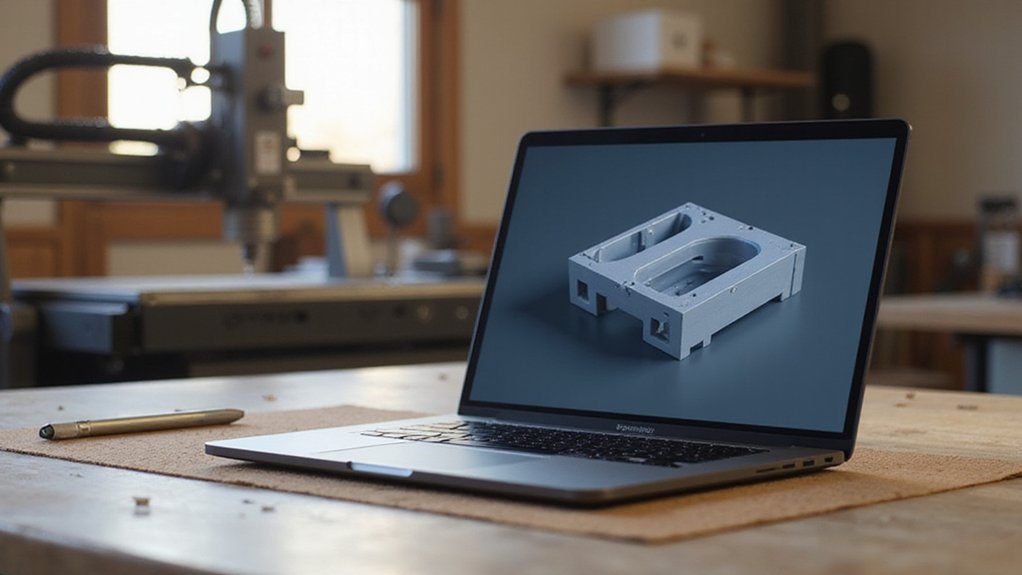
You need to zero in on software compatibility first, since your CAD program must play nice with your CNC machine’s controller and operating system. Then consider ease of use and design capabilities, because a steep learning curve or limited tools will slow you down, while import file support and CAM integration level guarantee you can actually turn your designs into machinable toolpaths. Get these factors right, and you’ll save hours of frustration on every project.
Software Compatibility
Because your CNC machine’s brain—the control firmware—speaks its own language, your CAD software needs to be fluent in it too. Whether it’s GRBL, Mach3, or LinuxCNC, verify compatibility upfront. You’ll also need to export files in the right format, like G-code or DXF, so your control software can digest them.
Look for integrated communication features that streamline the workflow between your CAD and CNC hardware. That saves you from manual file shuffling. And don’t forget your operating system: Windows, macOS, or Linux? Your CAD must run on whatever controls your machine.
Finally, confirm the software can import and modify existing design files. You’ll want to tweak those to match your CNC setup’s specific quirks, like tool paths or material constraints. Get these basics right, and you’ll avoid headaches down the line.
Ease Of Use
Although an intuitive user interface can transform a formidable tool into a genuine creative partner, you’ll still need more than just a pretty layout. You want drag-and-drop features that cut the learning curve fast. Look for built-in tutorials and guided workflows; these streamline your design-to-machining process without headaches.
But ease of use goes deeper. Clear visual feedback and step-by-step instructions boost your confidence, especially when setting up your CNC machine. Compatibility with common hardware matters, too. Easy setup options, like automatic toolpath generation, can minimize manual adjustments. And real-time error detection? That’s a lifesaver.
To simplify operations, check for:
- Automated toolpath generation (saves hours of manual tweaking)
- A setup wizard for quick hardware configuration
- An undo function for instant mistake recovery
These features ensure you spend less time fighting software and more time machining.
Design Capabilities
Design capabilities go hand in hand with ease of use. You need precise drawing tools that handle both 2D and 3D design without a steep learning curve. A good CAD for your CNC machine lets you tweak designs down to the last millimeter, using direct coordinate entry or your mouse for quick edits.
And don’t settle for basic features. Look for advanced editing like transformations and a library of pre-designed shapes. These let you build complex geometries fast, stacking components with a few clicks. For instance, you can rotate a part 90 degrees or mirror a whole assembly in seconds.
Want a smoother progression from concept to manufacturing? Pick software that merges design and machining tools in one platform. That way, you’re not jumping between programs. You’ll draft, modify, and prep for cutting all in one spot, saving time and reducing errors. Keep it efficient!
Import File Support
What file formats can your CAD software handle? You need to look for support of common ones like DXF, DWG, SVG, or STEP. These guarantee compatibility with other design tools you’re already using. And don’t overlook importing raster images. JPEGs or PNGs? Make sure your software converts them into clean vector formats for CNC machining without hassle.
Check for direct imports from popular CAD programs too. That cuts out conversion headaches. But the real test? Complex geometries. Confirm your software brings those in without losing precious detail or forcing you to rework everything.
Does it preserve essential design attributes like layers, colors, and line types? This saves you setup time at the machine. Get import handling right, and your workflow stays smooth from sketch to cut.
CAM Integration Level
After you’ve nailed down file import support, the next big question is how tightly your CAD software talks to your CAM workflow. High CAM integration means you’re managing design and machining in one place, not juggling external programs. You’ll generate toolpaths directly from your 3D model, which cuts disruptions and speeds things up.
Look for features like automated machining strategies, material removal simulation, and built-in post-processing. These let you tweak toolpaths and cutting parameters without leaving the design interface. The payoff? Fewer errors and quicker iterations.
But integration also shapes your learning curve. More unified systems feel intuitive, so you’re not constantly switching contexts. For a streamlined experience, prioritize software that blends CAD and CAM seamlessly. You’ll thank yourself later when a simple design change updates your entire machining plan in seconds.
CNC Control Directly
When you’re picking your CAD software, CNC control isn’t something to overlook—it’s the bridge that turns your design into real-world cuts. You want real-time monitoring and adjustment capabilities, so you can tweak speeds or feeds mid-job without stopping everything. That’s precision you can’t ignore.
Look for a user-friendly interface with clear graphical and textual instructions. It shouldn’t feel like learning a new language. Automated CNC control features are a game changer too. They execute machining sequences with minimal manual input, boosting your efficiency big time.
Here’s what to check for:
- Real-time monitoring for live adjustments.
- Automation to handle repetitive sequences.
- Clear, intuitive panels that guide you.
And don’t forget: seamless integration between CAD CAM and CNC control means no clumsy file transfers. You get a streamlined flow from design to finished part, saving you headaches and wasted time. That’s the kind of control you’ll actually love using.
Hardware Compatibility
Let’s flip the focus from real-time control to something just as essential: making sure your CAD software actually talks to your machine. You need software that supports your hardware’s specific communication protocols and controllers, like GRBL, Mach3, or LinuxCNC. Without that, you’re stuck.
And don’t overlook file formats. Your CAD must export G-code, DXF, or SVG so your CNC reads it cleanly. Check driver compatibility too. For Arduino based machines, the CH340 driver can make or break setup simplicity. Even your machine’s dimensions matter. If your software can’t handle your CNC’s max working area, you’ll face planning nightmares later.
Available Learning Resources
How steep is that learning curve? It doesn’t have to be a cliff. You’ll want software packed with tutorials, manuals, and videos that walk you through every step. Built-in guides are a lifesaver for newbies, accelerating your progress fast. Online forums and community groups offer real world troubleshooting, plus advanced tips you won’t find in a manual. And don’t underestimate customer support; when you’re stuck on a setup issue, a quick answer saves hours. Regular updates keep you sharp, teaching you new features and best practices as they roll out. For a warm, stress free experience, look for software that hands you the rope before you start climbing. That’s the kind of resource collection that turns frustration into fun!